
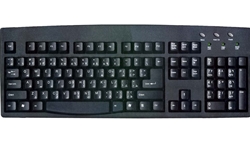
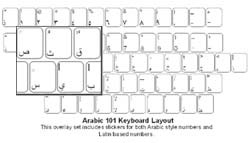

The DataCal Arabic 101 language keyboard labels are a high-quality, durable and economical solution to creating an Arabic 101 bilingual keyboard. The keyboard labels are available in blue letters on clear labels, white letters on clear labels and green letters on clear labels. Manufactured in the US with Lexan® polycarbonate, printed sub-surface for durability and comfort.
In stock
Regular Price: $12.95 On Sale For: $9.95 |
|||||
Specifications
Features
Setup
Use
Specifications Arabic (101) language labels are clear labels that fit on your keyboard keys. The Arabic characters are on the right side of thekey so the original key legend shows through. You can choose to install Latin style numbers (i.e., "1," "2," "3," etc.) or Arabic style numbers. The Arabic (101) label set uses the keyboard layout in Windows XP and Vista. The labels are printed on clear Lexan® so the original key legend shows through; this allows you to add Arabic (101)labels to your existing keyboard so that it becomes a bilingual keyboard (Arabic and the original language of your keyboard). The labels are available in blue letters on clear labels (for beige and light colored keyboards), white letters on clear labels (for dark colored keyboards), and green letters on clear labels for either dark or light colored keyboards. The Arabic (101) labels support the Arabic keyboard layout in Bahrain, Egypt, Iraq, Jordan, Kuwait, Lebanon,Libya, Oman, Qatar, Saudi Arabia, Syria, U.A.E., and Yemen. The label set includes two sets of number labels so you can elect to use Latin style numbers or Arabic language style numbers. This language is supported in Windows XP; older versions of Windows will require an Input Method Editor (IME)from Microsoft or third-party software. We also have the Arabic (102)keyboard labels that support Arabic in Algeria, Morocco,and Tunisia. The Arabic (101) labels are a very economical option for creating a bilingual Arabic keyboard. The language labels use an easy peel-and-stick method to install. They will not damage the original keyboard key. The letters are printed on the underside of the labels so that the lettering will not wear off. This affords you with many years of durable use. Installing DataCal Keyboard Labels The DataCal Arabic label set includes both Arabic style and Latin style number labels. You can choose which style you wish to use. If you choose the Arabic style numbers, you must configure your software to print the correct style. Because Arabic text entry is right-to-left, certain characters, such as the parentheses, brackets, braces,etc. are on different keys in different software applications. For example, in Microsoft Word, the left parentheses is on the "9" key. In MicrosoftWord Pad, the left parentheses is on the "0" key. The DataCal Arabic keyboard label set includes labels for both configurations. You should check your software that you use the most and install the correct labels required by your software. DataCal language labels are designed to fit desktop and laptop computer keyboards. Labelsize: 7/16" w X 9/16" H (11mm W X 14mm H) Features
How to setup Windows for Arabic Setup instructions for Arabic 101 in Windows VistaSetup instructions for Arabic 101 in Windows XP Earlier versions of Windows do not support the Arabic 101 keyboard. You will have to secure fonts and a keyboard layout from another vendor to be able to type in Arabic. Instructions for Typing in Arabic inWindows Numbers in Arabic Labels The DataCal label sets for Arabic (101) and Arabic (but not Arabic 102) include both Latin style numbers and Arabic style numbers. Microsoft Word allows the user to select either number set. Other Windows applications, such as Microsoft Excel, WordPad, etc., do not allow the user to select; only the Latin style characters are available in these otherapplications. If you would like to configure Word 2000 (or later) to use Arabic style numbers, follow these steps: 1. Click on Tools > Optionsin the Word menu bar. 2. Click on the Right-to-Lefttab (or the Complex Script tab) in the Options dialog box. 3. In the Numeral section,click on the arrow to the right of the scroll box and select: Context (notArabic). 4. Click on OK to complete the selection. When you select the Arabic language in Word and type numbers, you will see Arabic language style numbers instead of the Latin style numbers. Arabic Parentheses
|
|||||


